

What you need
- A Windows, macOS or Linux PC with Oulim Desktop installed
- Folders with your videos (external drives and network drives work too)
- A phone, tablet or TV on the same Wi-Fi with Oulim installed
Tip Devices can only connect while the PC is on and Oulim Desktop is running. If you close the window with the server on, Oulim keeps running in the system tray.
1. The setup wizard
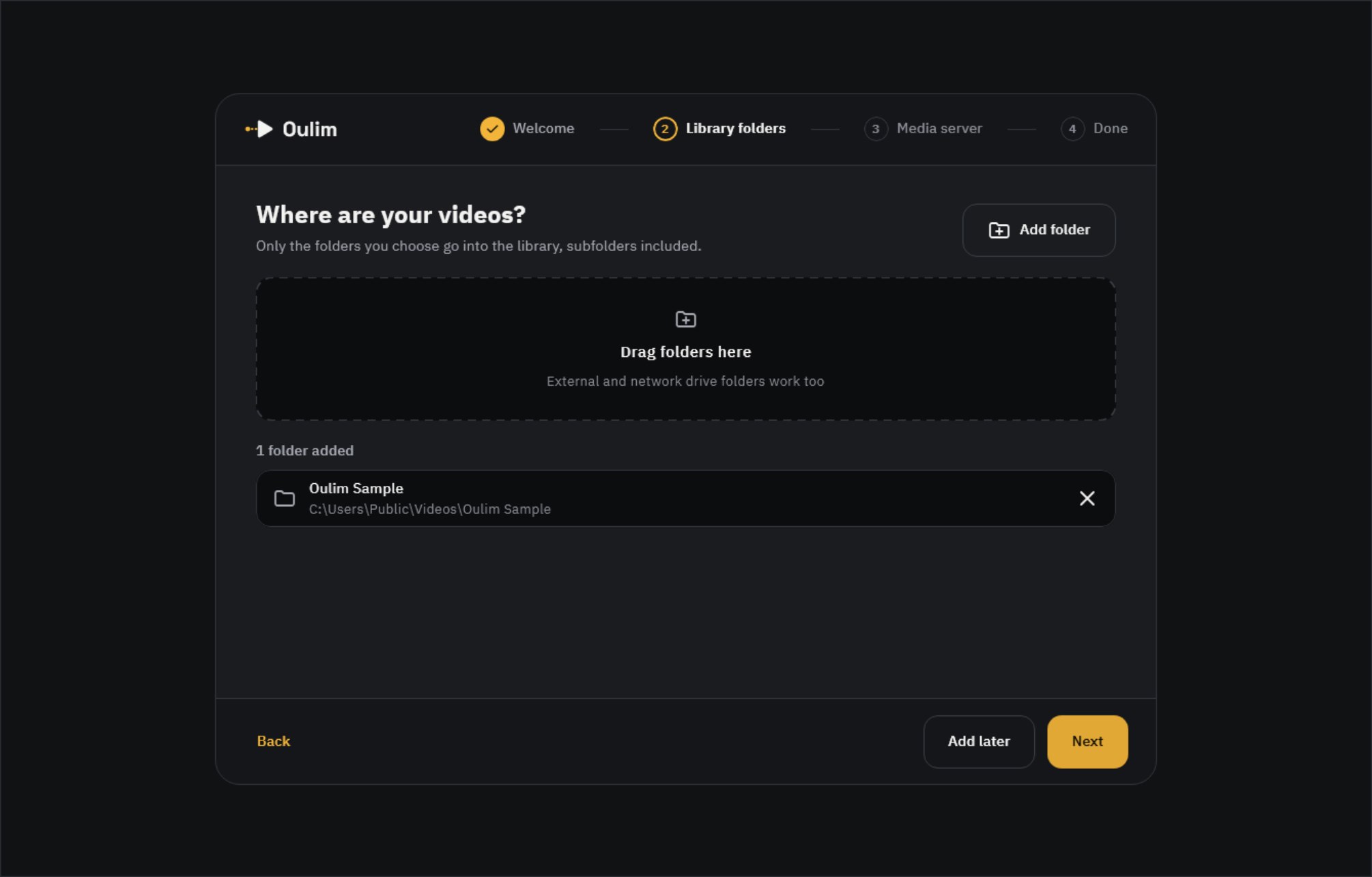
The first time you open Oulim Desktop, a four-step wizard appears: Welcome → Library folders → Media server → Done.
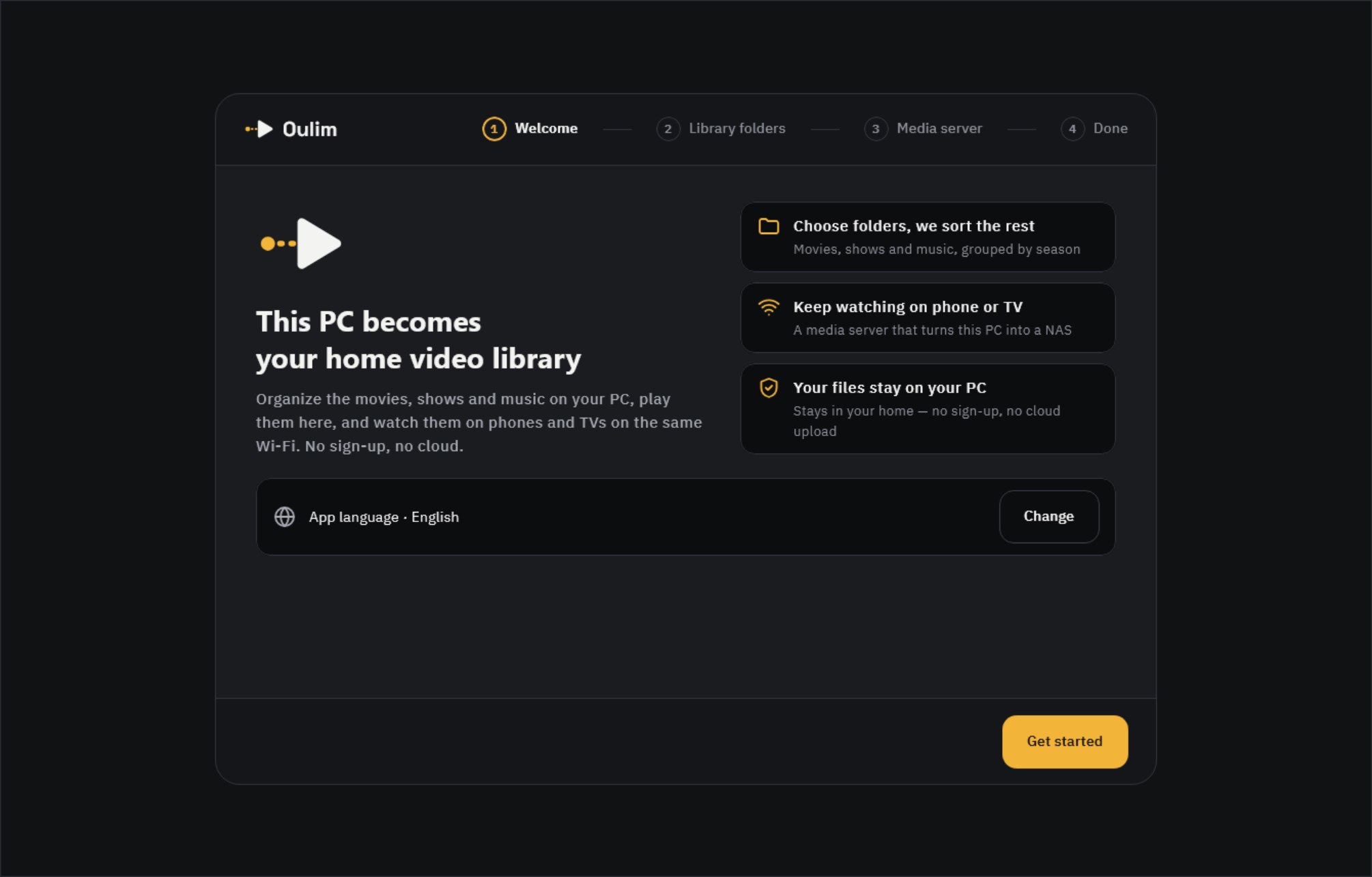
- Click Get started.
- Click Add folder, or drag folders onto the window. Indexing starts right away. To do it later, click Add later.
- Click Next (available once you’ve added at least one folder).
- Leave Turn on media server switched on.
- Choose who can connect. At home only is a good start. Also away from home tries to open a port on your router automatically (see section 3).
- Click Turn on & next — the server starts now. To skip the server, click Skip for now.
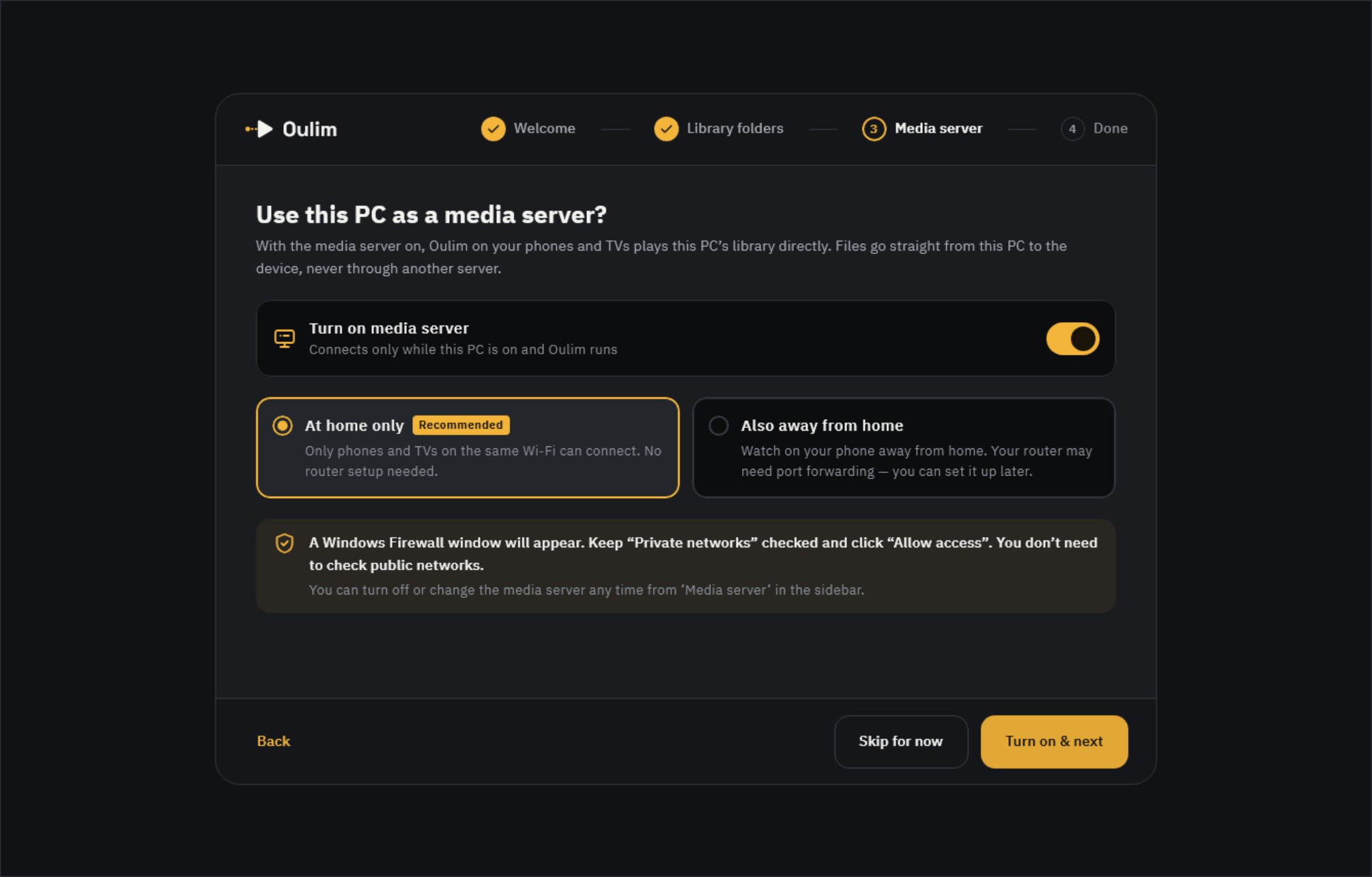
Note The first time the server starts, Windows shows a firewall prompt. Keep Private networks ticked and click Allow access. If your network is set to “Public”, phones can’t find the PC — switch it to “Private” in Windows Settings.
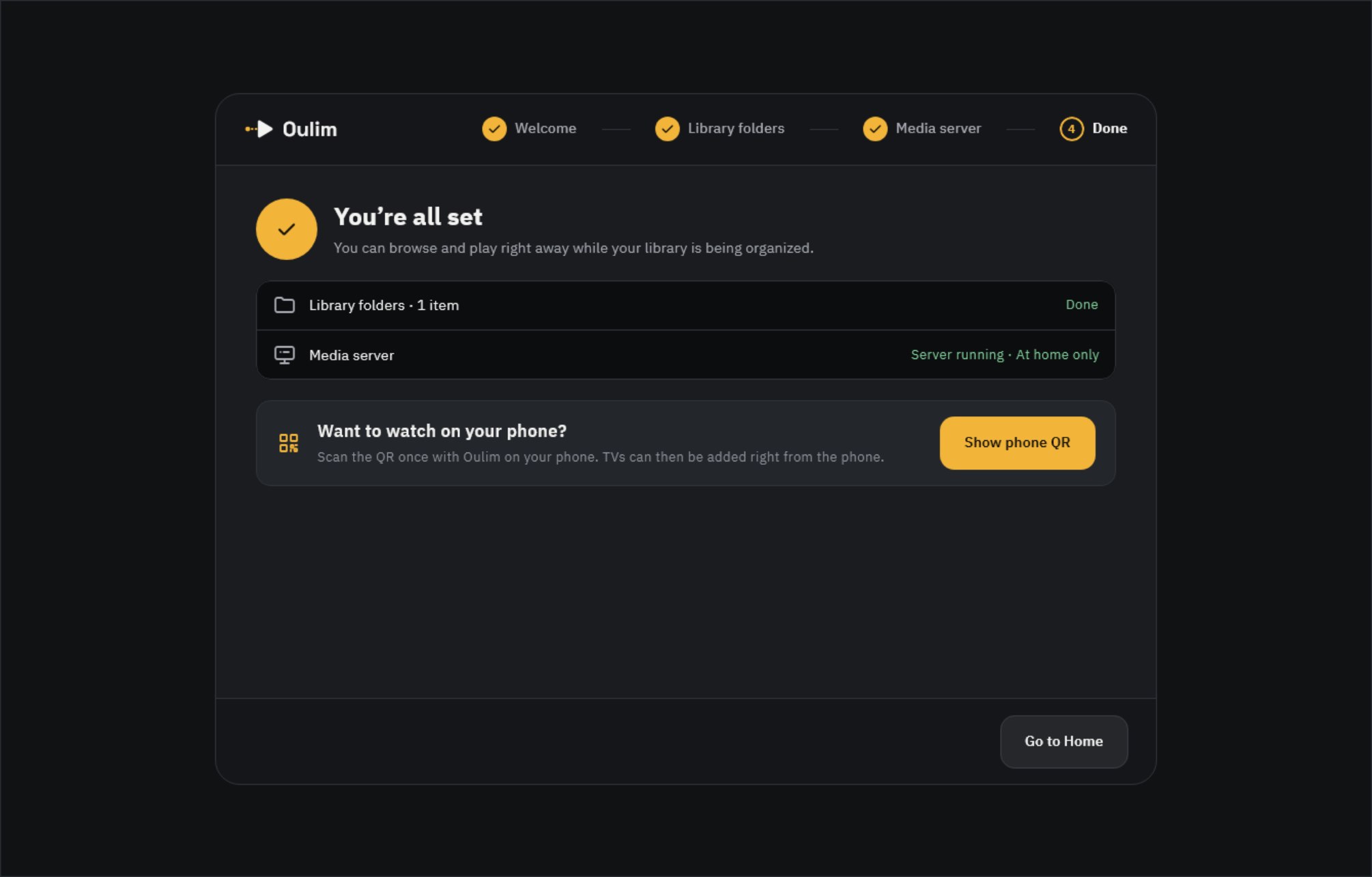
The final You’re all set screen shows indexing progress and the server status. To connect a phone right away, click Show phone QR and continue with section 2.
A tour of the Media server screen
Use Media server in the left menu to turn the server on or off and check its connections.
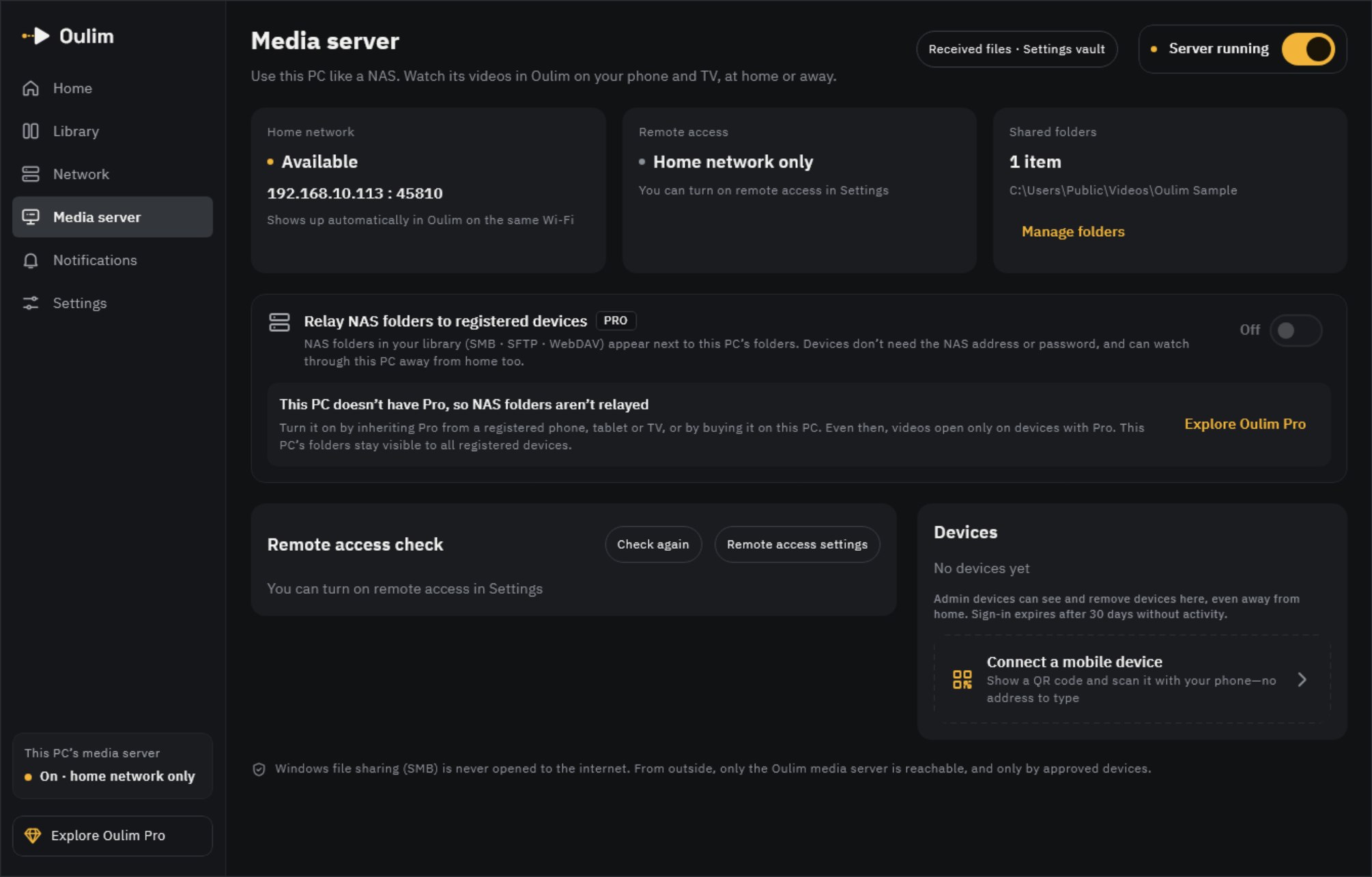
| Card | What it shows |
|---|---|
| Home network | This PC’s address. Oulim apps on the same Wi-Fi find it automatically |
| Remote access | Whether it can be reached from outside your home (section 3) |
| Shared folders | Your PC library folders are shared as they are. To change them, use Manage folders |
| Devices | Phones, tablets and TVs allowed to connect to this PC |
Tip Change the PC name shown on phones in Settings › Media server › Server name (blank uses the computer name). In the same place, Start server when the computer starts launches the server in the tray when you turn the PC on.
2. Add a phone or tablet
Only devices you approve can connect. One QR code does it.
- On the PC: in Media server › Devices, click Connect a mobile device. A QR code and a 6-digit code appear (they refresh every 5 minutes).
- On the phone: tap the QR icon (Add my PC) at the top of the Network tab and line up the QR code on the PC screen inside the square.
- Confirm Add this PC? on the phone. A connection request goes to the PC.
- On the PC: under Connection request, check that both screens show the same code, then click Approve.
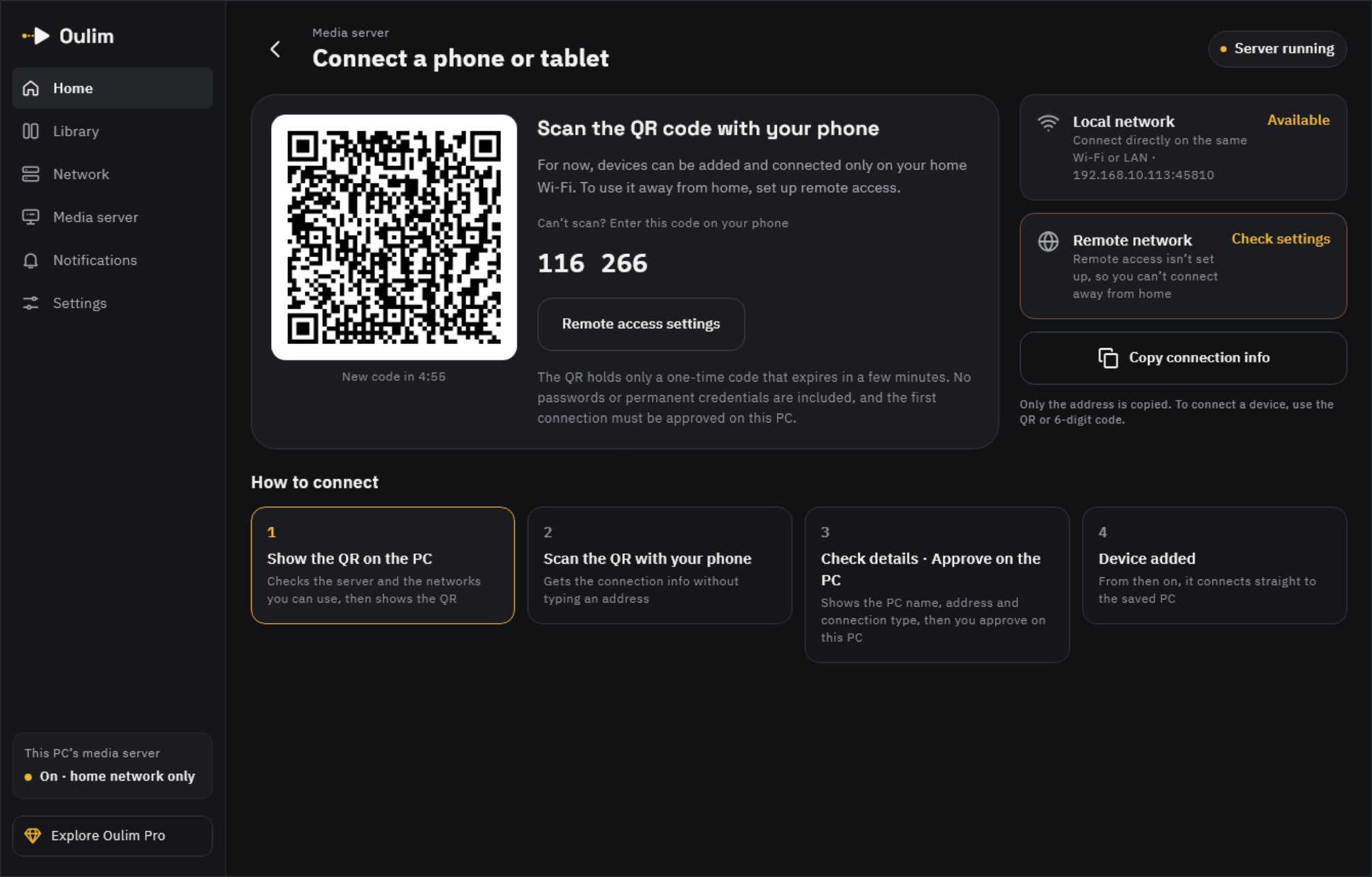
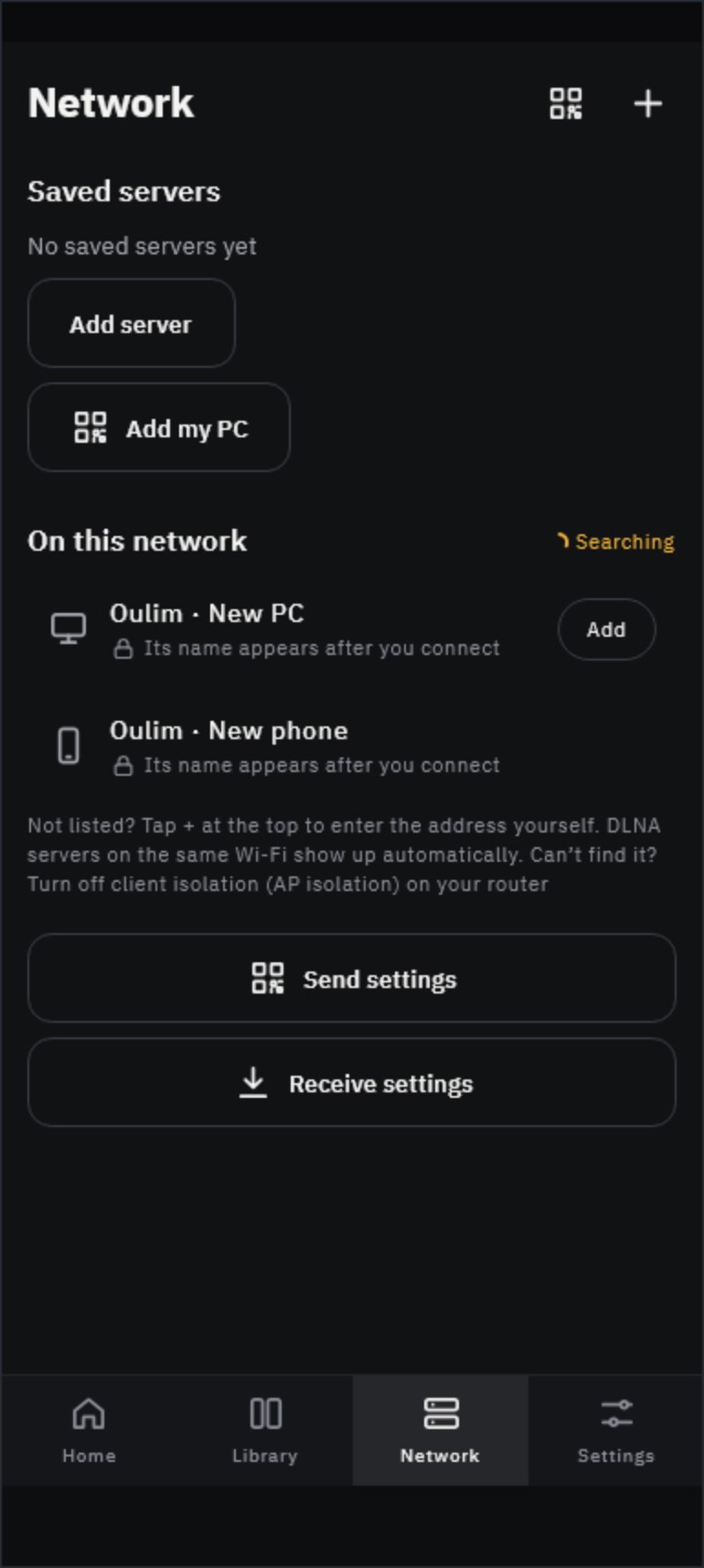
Tip Can’t use the camera? Choose Can’t scan? Enter the code, pick the PC on the same Wi-Fi and type the 6-digit code shown on the PC.
- TV: in the TV’s Add a PC, choose Use your phone (recommended) and scan the QR code on the TV with a phone you’ve already registered. Entering a code and finding the PC on the same Wi-Fi also work.
- Device limit: Free allows 3 devices per PC, Pro up to 15. When it’s full, the approval screen on the PC offers Remove one and approve.
- Managing devices: the ⋮ menu of a registered device lets you rename it, grant admin rights, allow file transfers or Remove device. Devices that haven’t connected for 30 days need to be approved again.
3. Watch away from home
To reach your PC directly from outside, your router needs to open a door (a port) to it. Nothing goes through a relay server, so your videos never pass through anyone else. Remote access is a Pro feature.
Choose a method under remote access in Settings › Media server.
| Method | When to use it |
|---|---|
| Automatically via router | If your router supports UPnP, it just works — nothing to set up. The easiest option |
| Manual port forwarding | When automatic doesn’t work. Enter the internal IP, external port, internal port and protocol shown on screen into your router’s admin page |
| Off (home only) | If you don’t need remote access (default) |
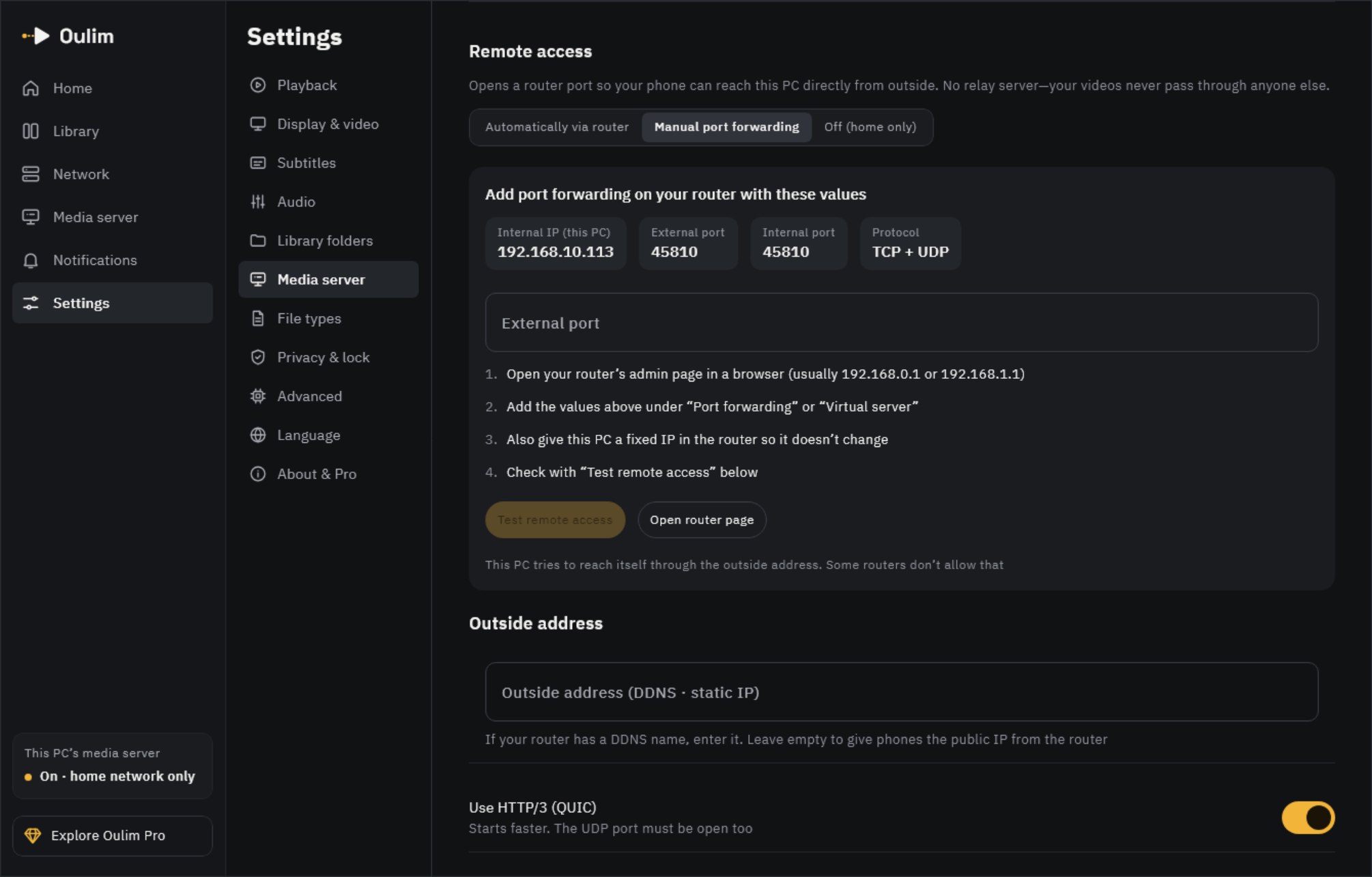
- Outside address (DDNS · static IP): enter your DDNS or static IP address if you have one. Leave it blank to use the public IP reported by your router.
- Use HTTP/3 (QUIC): playback starts faster. With manual port forwarding, also open UDP on the same port number.
- When you’re done, check it with Test remote access.
Media server › Remote access check lists the router’s automatic port opening, the open port, public IP, DDNS address and remote access test line by line, and tells you what to do where something is blocked.
Note If you see CGNAT detected or Double NAT, your ISP or an upstream router prevents direct connections from outside. Ask your ISP for a public IP, or switch the upstream modem/router to bridge mode. Access at home keeps working.
Tip Even if Test remote access says Couldn’t confirm from this PC, it may still work — some routers block a PC from reaching its own external address. Switch your phone to mobile data and open the PC in Oulim.
Watch NAS folders through your PC (Pro)
If your PC library includes NAS folders (SMB, SFTP or WebDAV), turn on Relay NAS folders to registered devices in Media server. They appear next to your PC folders on your phone without entering NAS addresses or passwords there, and work away from home through your PC. Both the PC and the viewing device need Pro.
- Register the NAS on the PC just once. Every registered phone, tablet and TV then sees it.
- The PC keeps posters, synopses and scene thumbnails organized and devices just get the list. Network shares are rescanned every 30 minutes, or right away with Rescan now.
- A tag on the top left of each card (SMB · SFTP · WebDAV) shows where the video lives. If the same title is in both a PC folder and the NAS, it shows as separate cards, and episodes and Up next stay within that source.
- If you also added the same NAS on your phone, the list merges into one. At home it opens the NAS directly when it can, otherwise through the PC. When the PC is off, your phone keeps using its own NAS setup.
- Devices without Pro don’t see relayed folders — only the PC folders. Relay can’t be unlocked with an ad.
Tip Nothing is installed on the NAS, and you don’t need to open NAS ports to the internet to watch away from home — your PC’s remote access is enough.
Let your PC convert 4K videos (Pro)
Some phones, tablets and TVs can’t decode 4K in hardware — especially 4K at 60 fps — so playback keeps stalling. Your PC can convert the video to 1080p or 720p as it streams, so it plays smoothly. The original file on your PC is never changed.
- On the device you watch on (phone, tablet or TV), open Settings › Display & video.
- Under Watching from Oulim PC, select Convert PC videos. On a TV, select the Convert PC videos row on the same screen.
- Choose Auto, 1080p or 720p.
| Option | What it does |
|---|---|
| Off | Plays the original without converting (default) |
| Auto | Converts only the videos this device can’t play in hardware, to 1080p. A good place to start |
| 1080p | Converts every video larger than 1080p to 1080p |
| 720p | Converts every video larger than 720p to 720p. Handy on mobile data |
- While a converted video plays, the media info shows Via PC · 1080p.
- You can still choose the original audio tracks and subtitles (SRT, ASS and so on) and jump to any scene. Image-based subtitles such as PGS aren’t shown yet.
- Your PC adjusts HDR videos so the colors look right on a regular screen.
- The first picture can take a few seconds when you start a video or jump far ahead.
- Devices without Pro play the original. Pro is checked on the device you watch on, not on the PC.
Note Conversion works only on a Windows PC with Intel, NVIDIA or AMD graphics (a hardware encoder). The PC converts one video at a time, so if another device is already using it, the original plays instead.
Troubleshooting
| Problem | Try this |
|---|---|
| 4K videos keep stuttering | On the device you watch on, set Settings › Display & video › Convert PC videos to Auto (Pro) |
| My phone can’t find the PC | Check that both are on the same Wi-Fi, that the Windows network is “Private”, and that Oulim is allowed through the firewall. Also turn off client isolation (AP isolation) on your router |
| The QR code expired | Click New QR code on the PC |
| I can’t add more devices | Free allows 3. Remove device for one you no longer use, or go Pro |
| Remote access doesn’t work | Find the blocked line in Remote access check and follow the port forwarding or CGNAT advice |
| Nothing shows when the PC is off | That’s expected — the PC must be on with Oulim Desktop running |