

Phone and tablet
In portrait, buttons for subtitles, audio, speed, Picture-in-picture and Sleep timer stay visible below the video, followed by the Up next list. Tap Full screen or turn your phone sideways to fill the screen with the video.
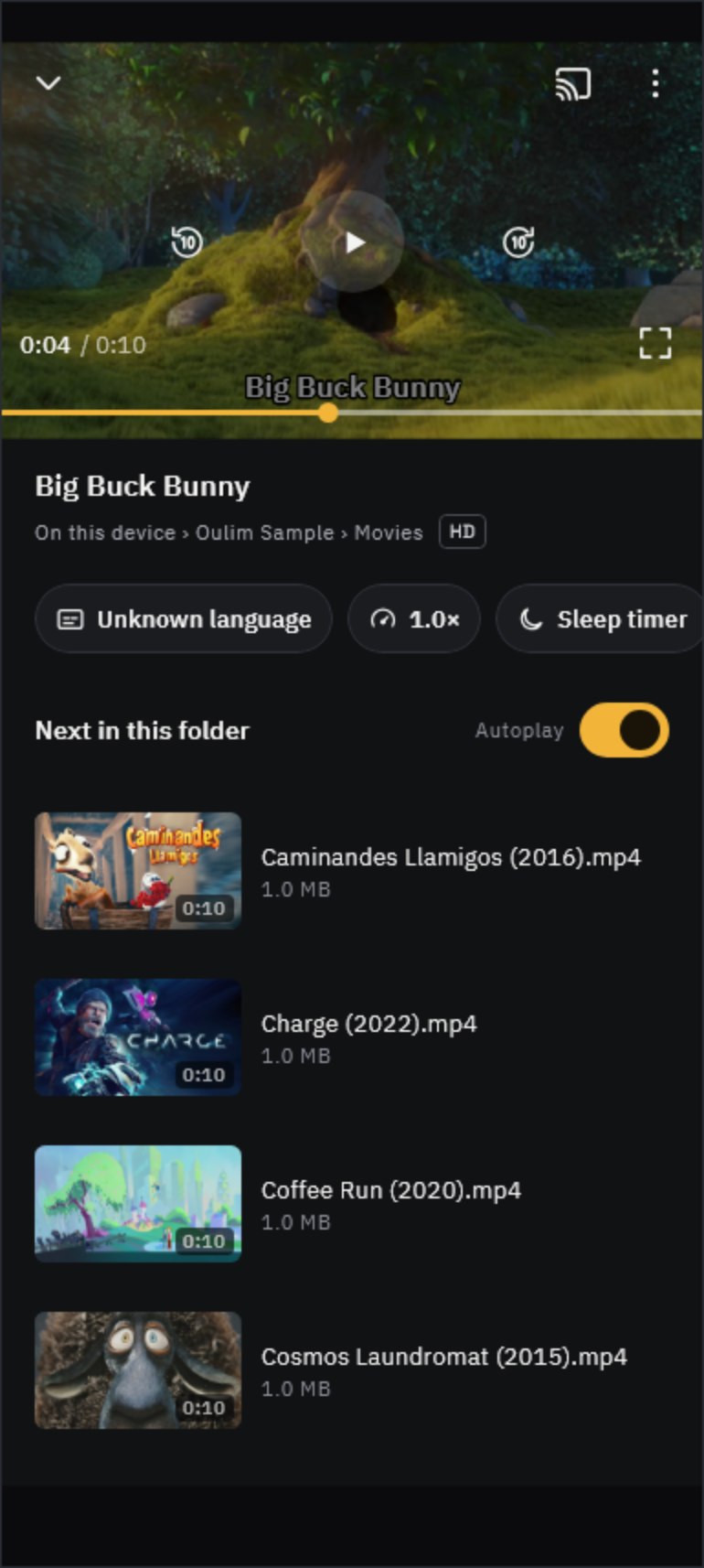
Touch gestures
| Gesture | What it does |
|---|---|
| Tap | Show or hide the controls |
| Double-tap | Left side skips back, right side skips forward, centre plays or pauses |
| Press and hold | Plays at 2× while you hold |
| Swipe left or right | Jumps to where you let go (one screen width = 3 minutes) |
| Swipe up or down | Left half adjusts brightness, right half adjusts volume |
| Pinch out / in | Fill / Fit |
Tip Turn off any gesture you don’t use in Settings › Playback › Gestures. The skip interval (5, 10 or 30 seconds) is in the same Playback settings.
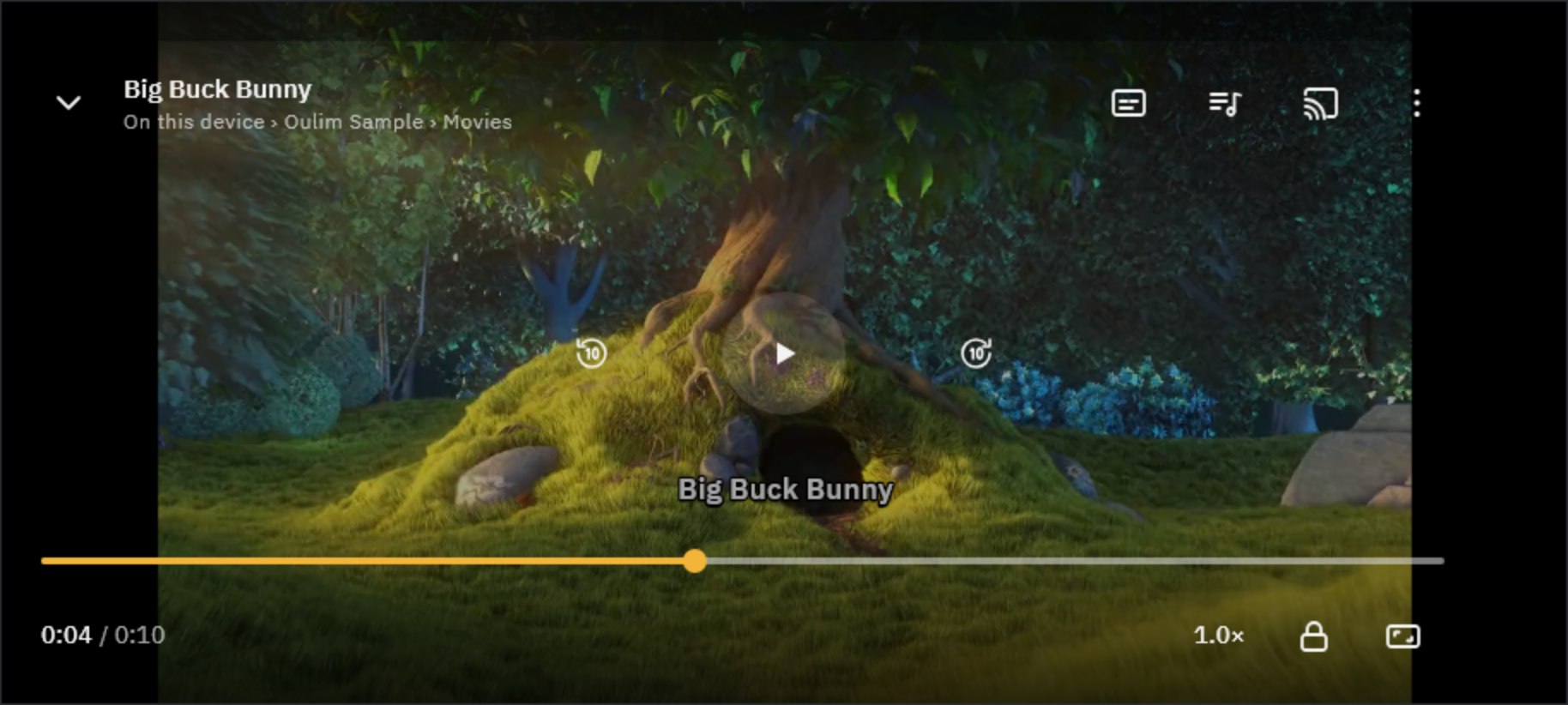
- Lock: blocks every button and gesture — handy when watching with kids or with the phone in your pocket. To unlock, tap the screen and press and hold the padlock for a second.
- Aspect ratio: each tap cycles Fit → Fill → Original.
- More (⋮): subtitles, playback speed, aspect ratio, sleep timer and Media info in one place.
- Picture-in-picture: keep watching in a small window while you use other apps (Android and iPhone). In Settings › Playback you can switch to it automatically when you leave the app.
Choose subtitles and audio
Tap Subtitles or Audio track to open the Subtitles & audio panel. A subtitle file (such as SRT) with the same name next to the video is picked up automatically and listed as an external subtitle.
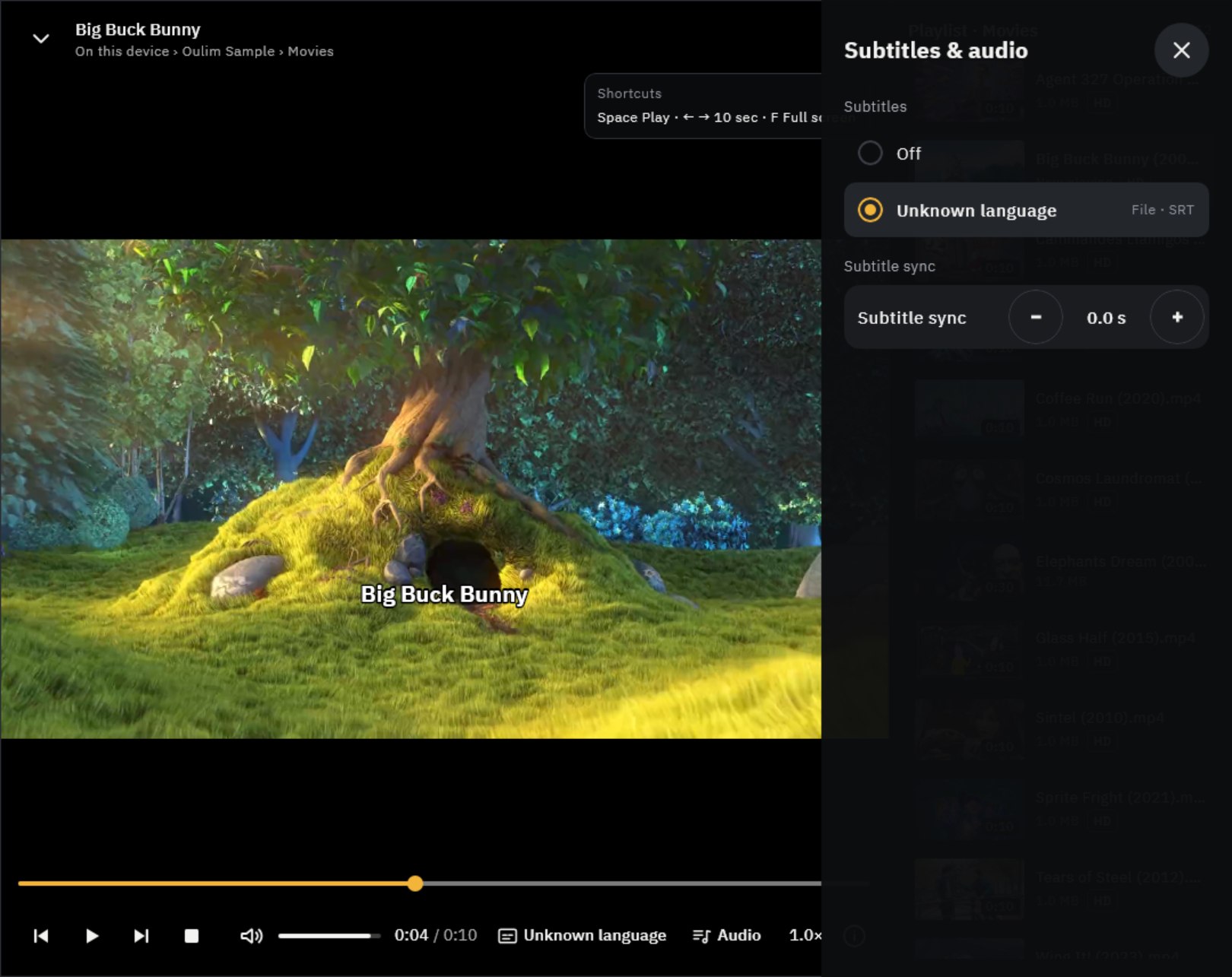
- Subtitle sync: if subtitles run early or late, nudge them with − / + in 0.1-second steps. This works with external subtitle files.
- Change subtitle colour, background and size in Settings › Subtitles.
- If a movie has advanced audio and you’re on the free app, it plays muted and shows Sound off — Pro feature. On phones and tablets, tap it to unlock 1 hour 30 minutes with one ad (Pro trial).
Speed, sleep timer and up next
- Playback speed: 0.5, 0.75, normal, 1.25, 1.5, 1.75 or 2×. Set the starting speed in Settings › Playback › Default speed.
- Sleep timer: stop after 15, 30, 45, 60 or 90 minutes, or when this video ends. While it runs, the button shows the time left.
- Autoplay next episode: 10 seconds before the end, an up-next card appears — cancel it or play now. Outside a series, the next file in the same folder plays.
- Resume playback: start a video again and it picks up where you stopped. Turn this off in Settings › Playback if you’d rather not keep a history.
Desktop
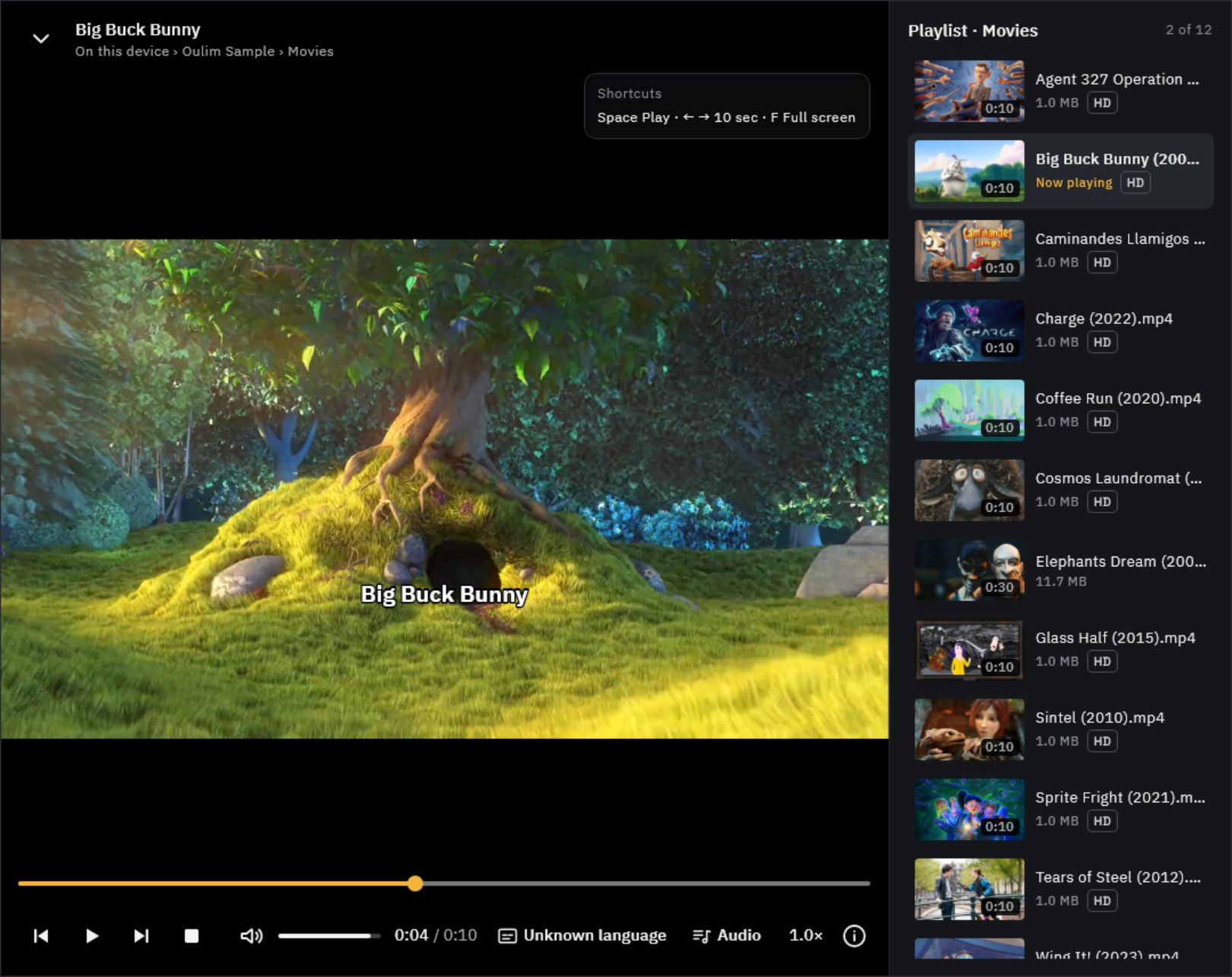
Move the mouse to show the controls. Click once to play or pause, double-click for full screen. The Playlist on the right lists the videos in the same folder; use the previous and next buttons to move through them. Drag the bar at the top to move the window.
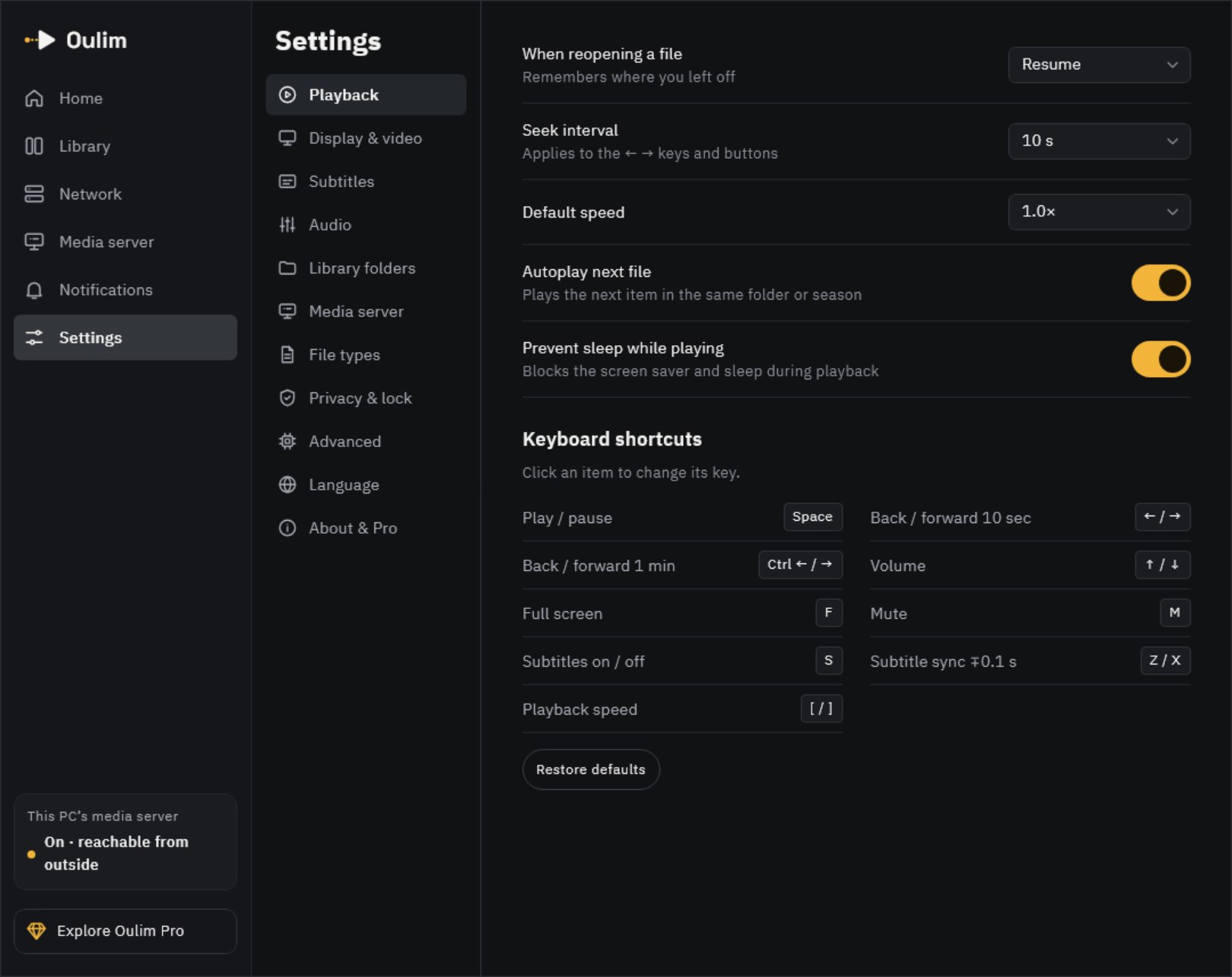
| Key | What it does |
|---|---|
| Space | Play or pause |
| ← / → | Skip (10 seconds by default) |
| Ctrl + ← / → | Back or forward 1 minute |
| ↑ / ↓ | Volume up or down 10% |
| M | Mute or unmute |
| F · Esc | Full screen · leave full screen |
| S | Subtitles on or off |
| Z / X | Subtitle sync 0.1 s earlier / later |
| [ / ] | Slower / faster |
| I | Media info |
| Page Up / Page Down | Previous / next file in the folder |
Tip On macOS, use ⌘ instead of Ctrl. To change a key, go to Settings › Playback › Keyboard shortcuts, click an action and press the new key. If another action already uses that key, the two swap; Restore defaults puts everything back. Esc, I, Page Up and Page Down can’t be changed.
TV remote

| Remote | Controls hidden | Controls shown |
|---|---|---|
| ◀ ▶ | Start skipping | Pick a spot on the seek bar; hold to move faster |
| OK | Play or pause | Jump to the chosen spot and play |
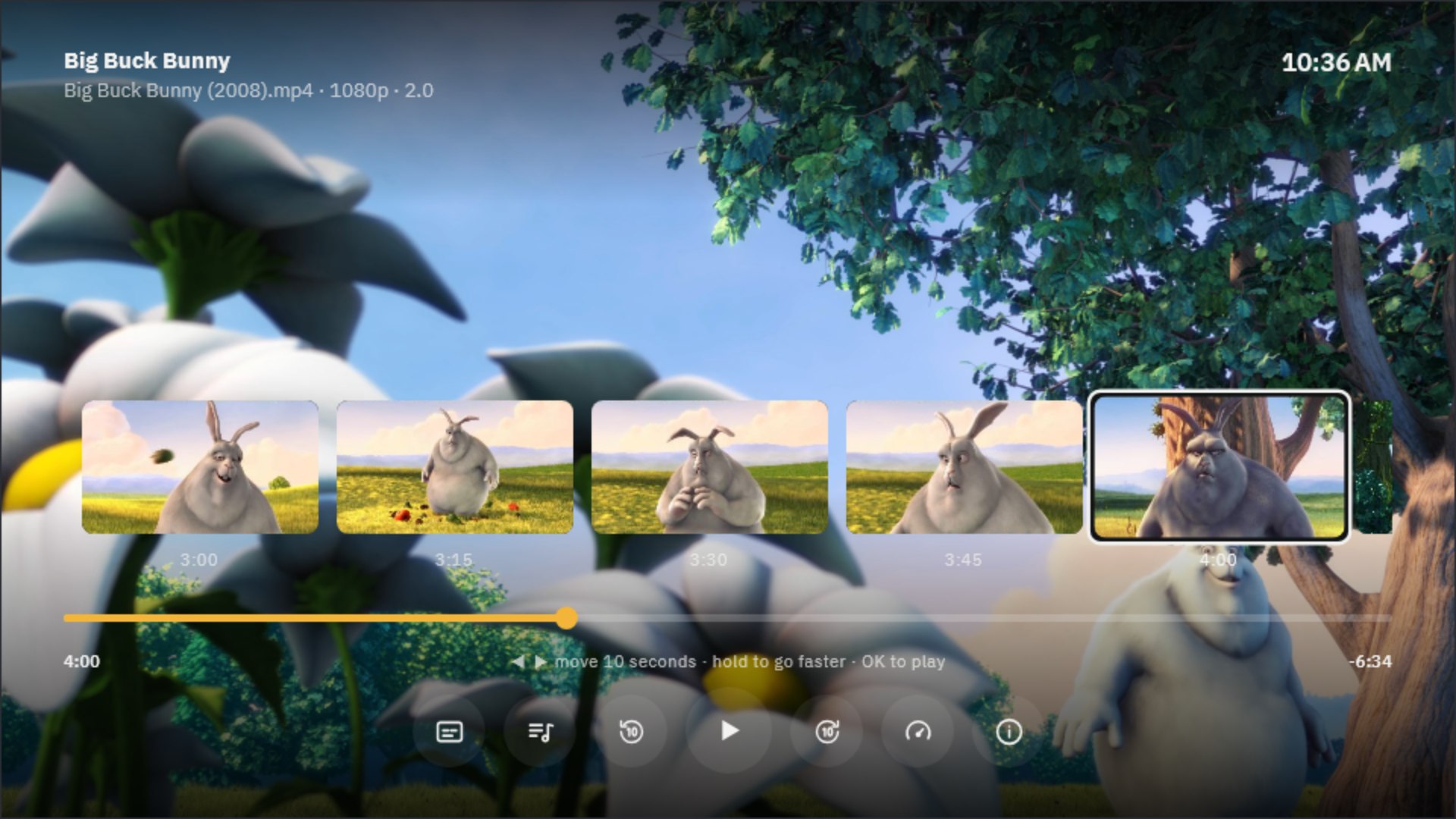
| ▲ ▼ | Show the controls | ▲ from the seek bar opens scene thumbnails — pick one to play from there |
| Back | Press again to stop playback | Close a panel or hide the controls |
To find the scene you want, press ▲ on the seek bar. The video’s scenes spread out as a row of thumbnails — browse them with ◀ ▶ and press OK to play from that scene.
Mini player
Tap Minimize player or go back, and the video keeps playing in a small window while you browse. Drag it anywhere, tap to make it big again, or close it with ✕. Music docks as a bar at the bottom; tap it to open the now-playing screen. (TV has no mini player.)
Music
- On the now-playing screen, skip tracks, shuffle and cycle repeat (off → all → one).
- A matching .lrc file in the same folder shows as Lyrics.
- Drag songs in Up next to reorder them, or remove the ones you don’t want.
- Under sound and playback, choose an equalizer (movie, music, vocal boost), volume levelling, gapless playback and crossfade.