

Install
- On phones, tablets and Android TV, get Oulim Player from the store. It shows up on your device as Oulim.
- For Windows and macOS, download it from this website.
- We’re still getting ready for launch. As soon as the download buttons go live, you can grab it.
First launch on a phone or tablet
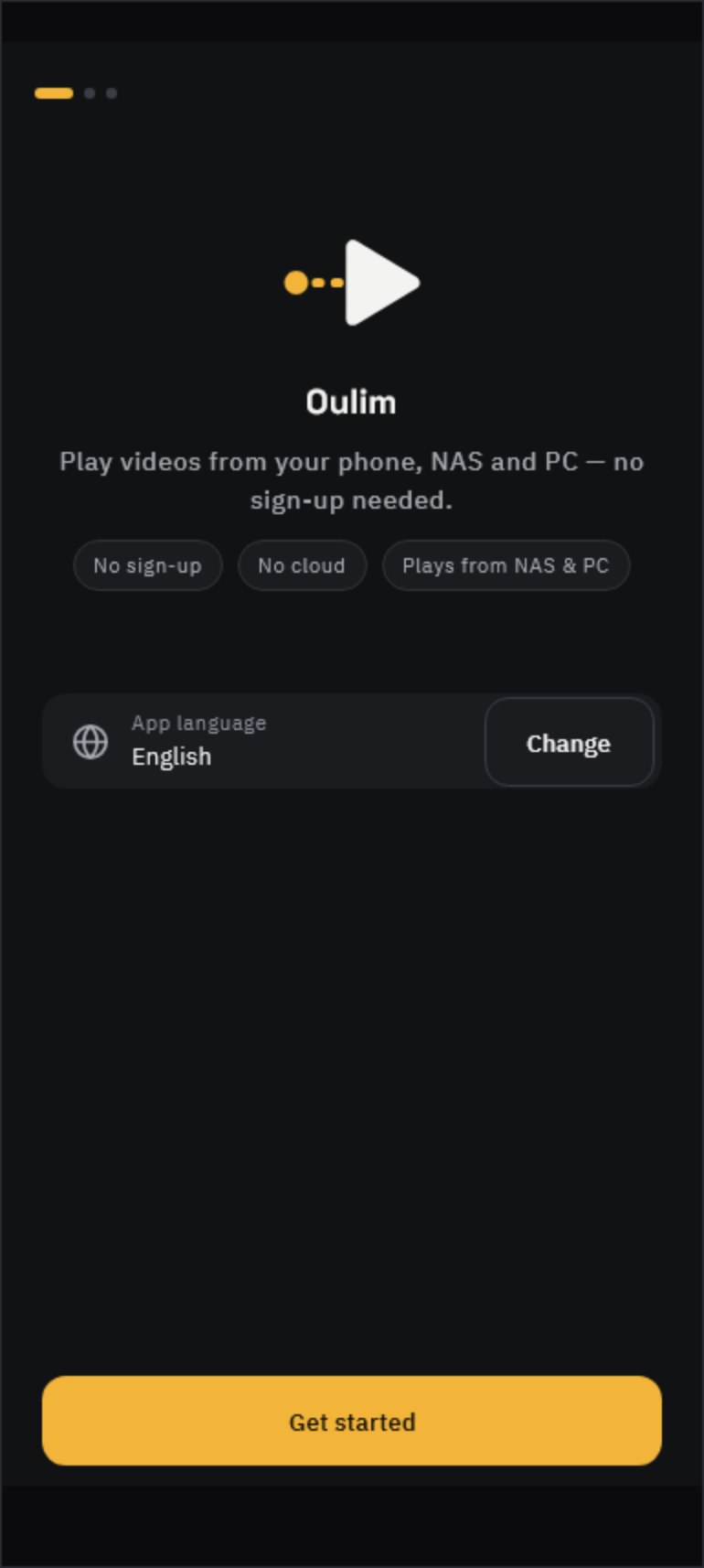
- Tap Get started. If the language isn’t right, tap Change first.
- On Allow access to your videos, allow access and Oulim builds your library from the videos on this device. Your files never leave it.
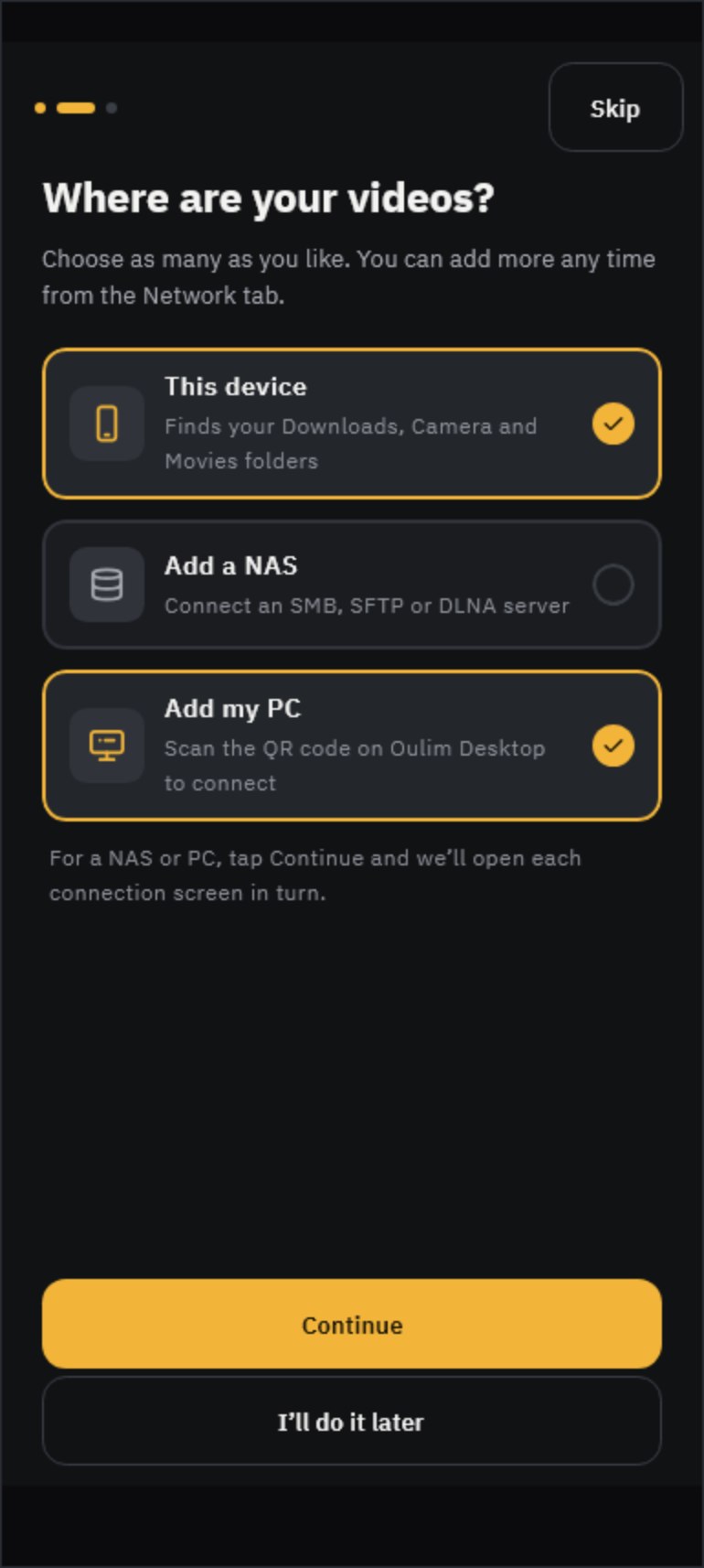
- On Where are your videos?, choose This device, Add a NAS or Add my PC. You can pick more than one. For a NAS or PC, tap Continue and each connection screen opens in turn.
- When you see You’re all set, you’re done. You can browse and play while Oulim is still sorting your library, and if you close the app it picks up where it left off next time.
Tip It’s fine to deny video access. Just choose Use NAS and PC only. You can add this device’s videos later with Find on this device under Settings › Library › Library folders.
First launch on a TV
- Check the language.
- Allow the permission if you want to watch videos from a USB drive plugged into the TV or from its internal storage. If you skip it, you still move on to the next step.
- On Connect the PC with your videos, select Connect when an Oulim PC on the same Wi-Fi appears in the list. If none shows up, connect using your phone or enter the code yourself.
Tip You don’t add a NAS during TV setup. Add it later from Network. If typing addresses and passwords with the remote is a hassle, use Send settings on your phone instead.
First launch on desktop
On desktop, you choose your video folders, then decide whether to turn on the Media server. To use this PC as the video library for your whole home, see ‘Use your PC as a NAS’.
A tour of Home and Library
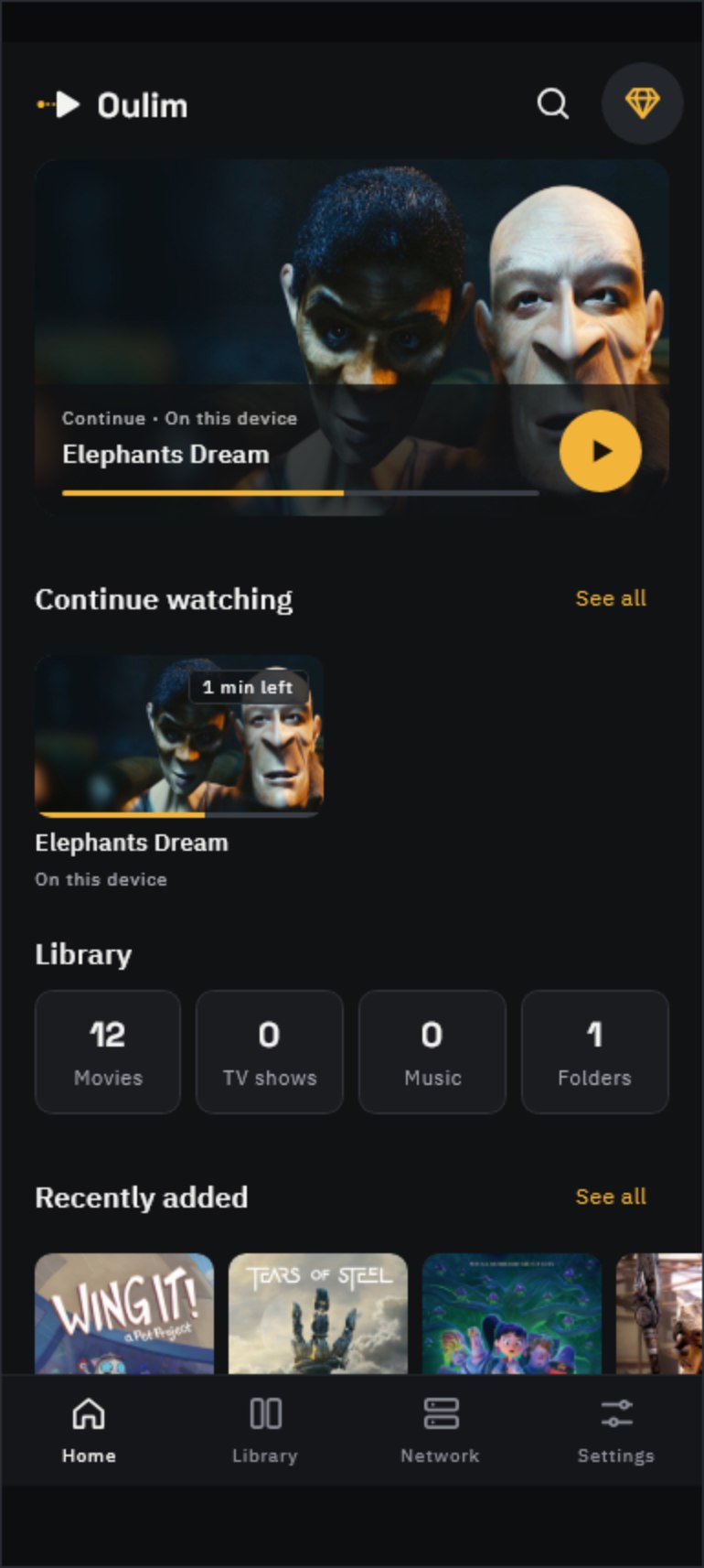
- Home: jump back into what you were watching from Continue watching, and see what’s been added recently.
- Library: everything sorted into Movies, TV shows, My videos, Music and Folders. The Folders tab shows your files exactly as they’re stored.
- Network: add a NAS or Oulim PC and browse its folders.
- Settings: change playback, subtitles, display, library folders, language and theme.
Tip On desktop you can grab and drag Home and any list with the mouse to scroll, just like on a phone. The wheel and trackpad work too.
Tip Posters and synopses looking empty? Add a TMDB key under Settings › Library › Metadata and your screens fill out nicely (see ‘Add movie and show info (TMDB and OMDb)’).
What to read next
- Watch your home PC’s videos on your phone or TV — ‘Use your PC as a NAS’
- Connect a NAS or shared folder — ‘NAS and network connections’
- Name your files so posters match correctly — ‘Organizing your files and folders’
- Move files and settings between devices — ‘Move files and settings between devices’
- Subtitles, speed and gestures during playback — ‘Playback controls’
- Moving what you watch from your phone to a TV — ‘Send to TV’