

What goes where
| What you want to do | Feature to use |
|---|---|
| Collect videos you shot on your phone on your PC | Move to PC (phone → PC) |
| Put a movie from your PC on your phone to watch on a flight | Exchange files (PC ↔ device) |
| Get videos from a USB drive on the TV onto your tablet | Exchange files with a device as the other side (same Wi-Fi) |
| Use the NAS you set up on your phone on your TV too | Send settings and Receive settings |
| Keep settings somewhere you can grab them anytime | Settings vault on your PC |
To exchange anything with a PC, first add the device to that PC (see ‘Use your PC as a NAS’).
Move to PC
- On your phone, open Network › My PCs, pick the PC and tap Send files.
- Tap Choose from gallery and select photos and videos. They stay on this device as they are.
- Choose where to Save to: the PC’s default folder (Oulim received files, with a separate folder for each device) or one of the PC’s library folders. Send to a library folder and posters and title info appear as soon as the files arrive.
- Tap Send and you’re done. Sending carries on even if you leave this screen.
- You can turn on Send on Wi-Fi only (on by default) and Only while charging.
- If the connection drops, sending resumes where it stopped, and each file is checked once it’s fully received. Files that are already there are skipped.
- Turn on Delete from this device after sending to remove only the files that passed that check (off by default).
Exchange files — PC ↔ device
Open both devices’ files side by side, like a file explorer, and copy in either direction. There’s no move (cut), so your originals always stay put.
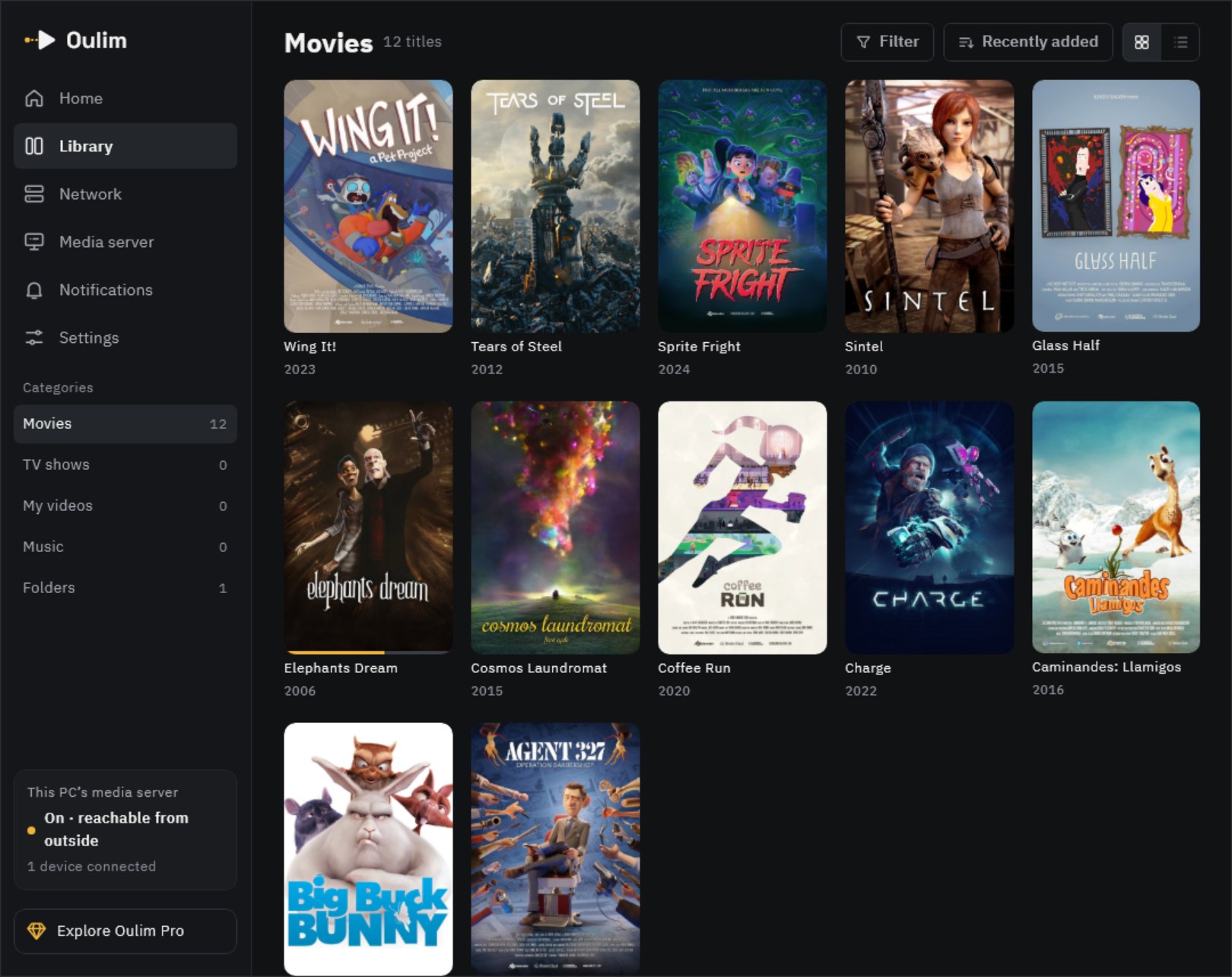
- Desktop: click the device under My devices in the sidebar. You can also drag and drop, or use Ctrl C · Ctrl V.
- Phone, tablet and TV: go to Network › My PCs › Exchange files.
- On the PC side, you only see folders shared by the media server. On the device side, you only see Oulim’s app storage and folders you picked yourself with Add folder.
- A device’s files show up on the PC only while Oulim is open on that device with Exchange files on screen. If it’s off, you can hold the transfer with Send next time it connects.
- Before pasting, Oulim checks the free space on the receiving side. It only starts if there’s at least 1 GB to spare beyond the size being sent.
Device to device — phone ↔ TV ↔ tablet
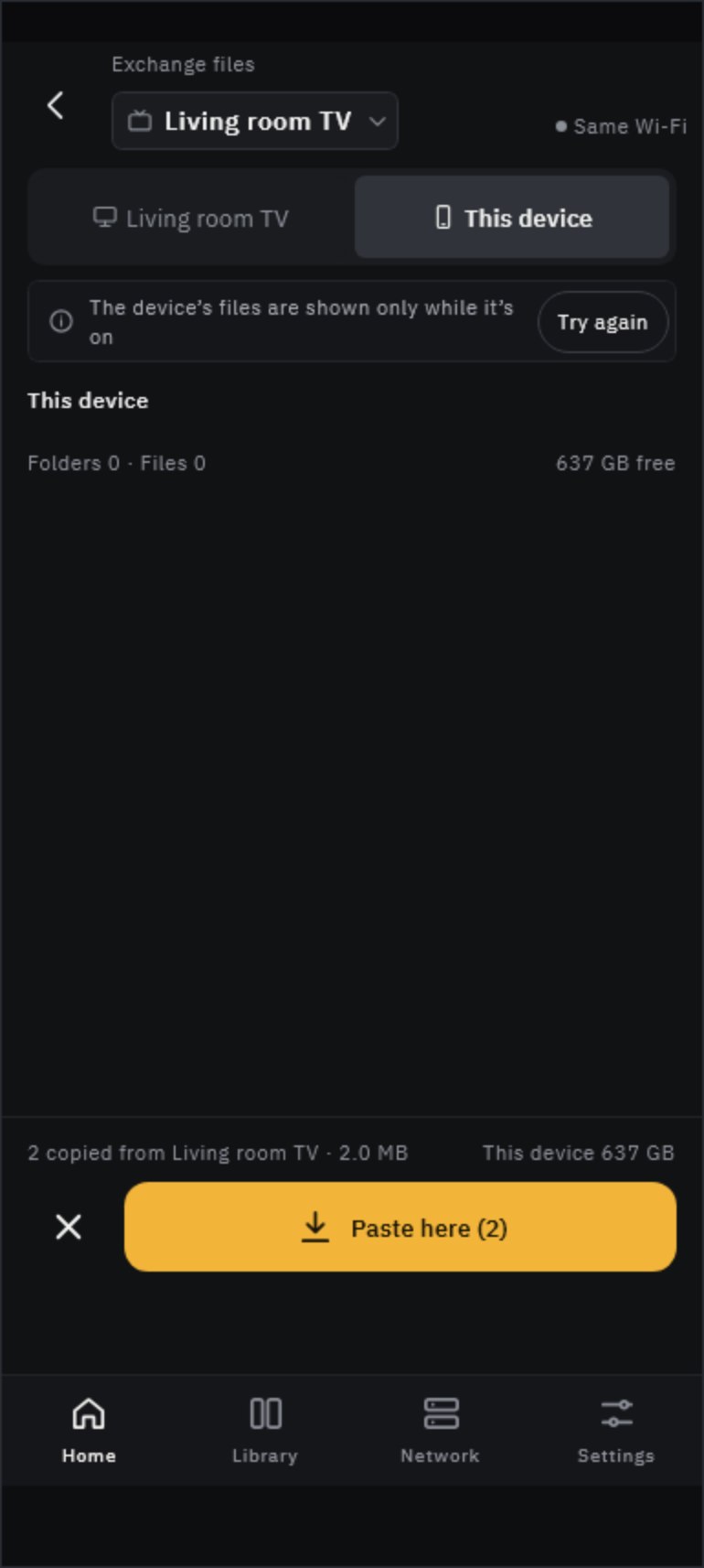
In the picker at the top of Exchange files, choose a device instead of a PC. Devices added to the same PC recognize each other without any extra confirmation.

- Open Oulim on both devices and keep them on the same Wi-Fi.
- Select files on the other device and tap Copy.
- Switch to This device, go to the folder you want, and tap Paste here.
- Devices that aren’t added to the same PC need to pair once. One taps Show QR, the other taps Scan QR, and you approve after checking that the 4-digit code matches on both screens.
- Paired devices are saved as nearby devices. You can remove them in Settings › Privacy & lock, and turning off Visible to nearby devices keeps you out of other devices’ lists.
- Devices can’t exchange files directly when you’re away from home. In that case, go through your PC (the PC vault or Send next time it connects, below).
Move settings
Pass your NAS servers (address, account, password), metadata keys (TMDB and OMDb) and library folders to another device without typing them again. Per-device settings like playback, subtitles and display aren’t moved.
| Method | When | How |
|---|---|---|
| Send settings and Receive settings | To a TV or another phone on the same Wi-Fi | The receiving device shows a QR code and the sending phone scans it (see ‘NAS and network connections’) |
| The Settings tab in Exchange files | When you have the two-pane view on a tablet, TV or desktop | See both sides’ settings, pick and copy — they go straight into the receiving device |
| Settings vault on your PC | When you’re away from home, or to grab them later | Upload to PC vault, then on a device added to the same PC, Get from PC vault |
Tip Whichever method you use, you get a copy. Changing it later on the sending device won’t change it on the other one. If the same server is already there, Receive settings lets you choose Replace or Keep both, while the Settings tab in the two-pane view simply replaces it.
Managing received files on the PC
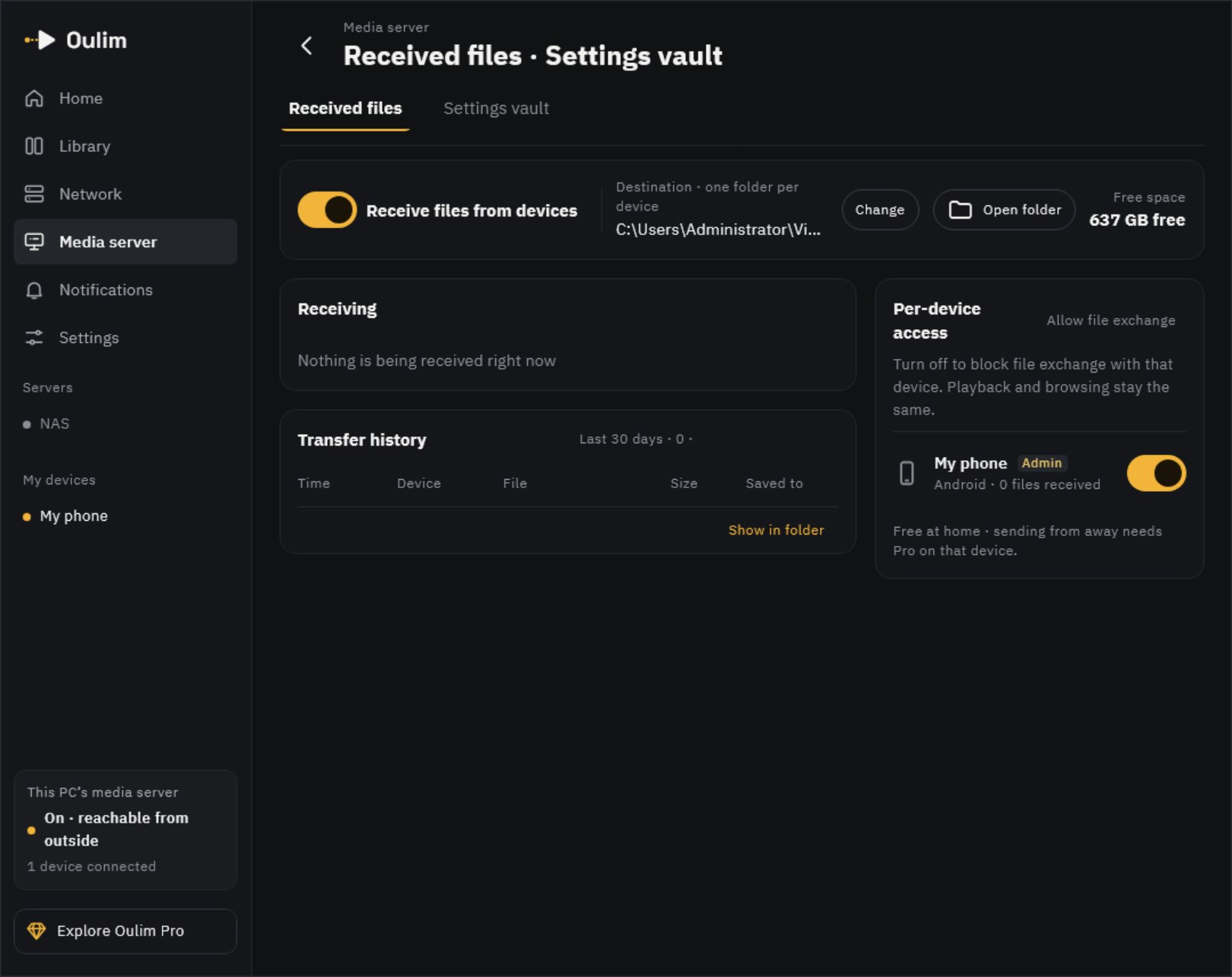
- Turning off Receive files from devices only stops devices from sending to the PC. The PC can still pull files from devices.
- Use Change to move the Save to folder. Files are saved in a separate folder for each device.
- Under Per-device access, you can turn off Allow file exchange for each device. Playing and browsing still work.
- On the Settings vault tab, you can see and delete settings your devices have uploaded.
Free and Pro
| At home (same Wi-Fi) | Away from home | |
|---|---|---|
| Move to PC, PC ↔ device file exchange | Free | Pro (on that device) |
| Device-to-device file exchange | Free | — (go through the PC) |
| Send and receive settings, PC vault | Free | Free (PC vault) |
Tip If you try to send to your PC while away from home without Pro, you’ll see Sending away from home requires Pro. Once you’re back home, it continues for free.